


01
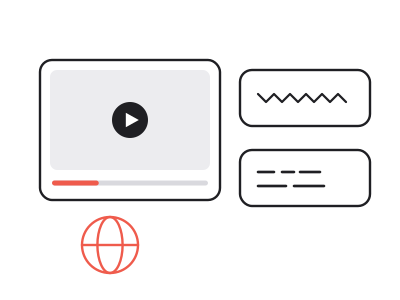
Language learners
Follow the words while you listen, and replay the half-second you missed by clicking that line instead of dragging the slider.
Read any YouTube video as text, beside the player, with every line clickable.
This is what came back for “How to Speak”, taken straight from its result page. Nothing here was written for this page.
A YouTube transcript is the text of everything said in a video, line by line, each line tied to the moment it was spoken. On YouTube it sits in a narrow side panel behind a menu; here it opens as a full column beside the player, searchable, with the current line highlighted as the video plays.
Reading is faster than listening, and text can be scanned in a way audio cannot. A transcript lets you find the exact sentence you need, check how something was phrased, or skip straight to the five minutes that matter — then press play on just those.
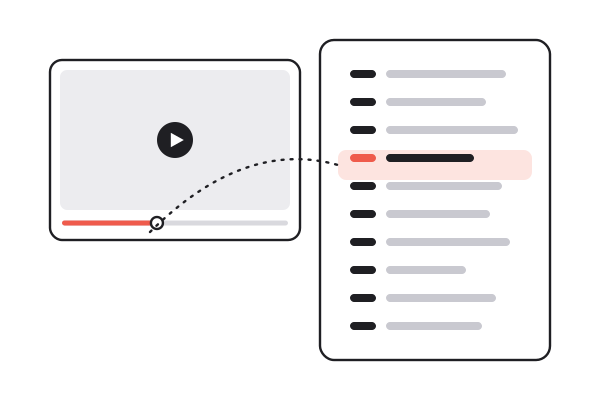
Full YouTube URLs, youtu.be short links, Shorts and links that already carry a timestamp all work.
The YouTube transcript opens next to the video with timestamps on. Scroll it, search it, or press play and follow along.
Click any line to hear that moment, copy the exact wording, and find the video again later in your workspace.
Timestamps are on by default, because finding the moment again is usually why you open a YouTube transcript.
Filter a two-hour podcast down to the lines that mention one name, and click straight into the audio from any of them.
Creator captions are close to exact; automatic ones slip on names and jargon. Automatic captions are labelled, so you know which you are reading.
A long video is split into named sections with start times, so you can move through the transcript by topic.
Ask where something was discussed and get an answer from the transcript, with the timestamps it rests on.
The transcript stays in the language spoken. A summary beside it can be written in any of eight languages.
Every line keeps its second
01 / 06Timestamps are on by default, because finding the moment again is usually why you open a YouTube transcript.
Filter a two-hour podcast down to the lines that mention one name, and click straight into the audio from any of them.
Creator captions are close to exact; automatic ones slip on names and jargon. Automatic captions are labelled, so you know which you are reading.
A long video is split into named sections with start times, so you can move through the transcript by topic.
Ask where something was discussed and get an answer from the transcript, with the timestamps it rests on.
The transcript stays in the language spoken. A summary beside it can be written in any of eight languages.
Follow the words while you listen, and replay the half-second you missed by clicking that line instead of dragging the slider.
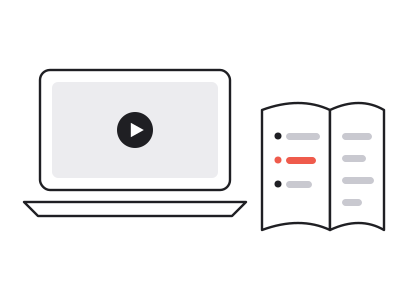
Skim an hour of lecture for the ten minutes the exam is about, then watch only those, with the text open beside them.
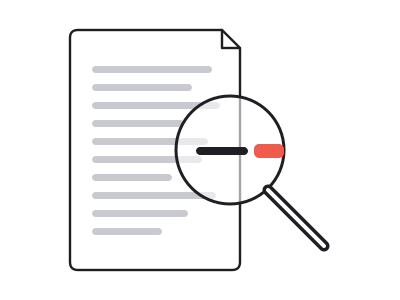
Read what was actually said, in order and in full, instead of what a 30-second clip suggests was said.
Search the YouTube transcript for the phrase you remember, hear it to confirm the wording, then copy it with the second it was spoken.
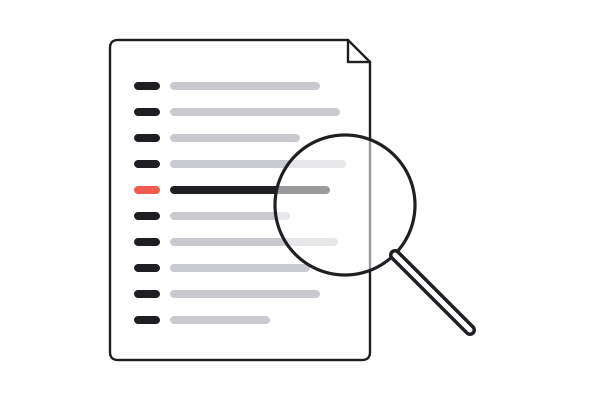
Finding one sentence in a long recording normally means dragging the slider and guessing. With the transcript open, you type a word and the column narrows to the lines that contain it — where a company came up in a two-hour podcast, or the minute a tutorial finally shows the command.
Each match keeps its timestamp, so the next step is one click: the player jumps there and you hear the sentence with its context. You read until something matters, then you listen to exactly that.
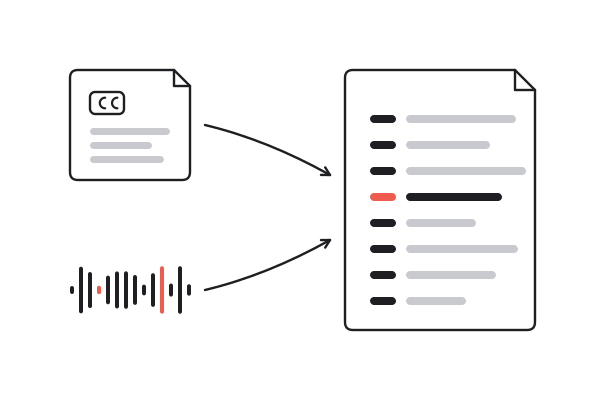
Most transcripts are the captions YouTube already holds, sometimes written by the creator and more often generated automatically. Creator captions are close to exact. Automatic captions handle ordinary speech well and slip on names, acronyms and technical terms, so they are labelled as auto-captions on the page.
A video with no captions at all is transcribed from its audio by speech-to-text, which for YouTube needs a Pro plan or above and costs 1 credit per minute. Either way, a word that looks wrong takes one click to check: play its line and hear it.
YouTube has a transcript panel. It was built for glancing, not for reading a whole video or coming back to it.
| YouTube's panel | Watching at 2x | summarizer.video | |
|---|---|---|---|
| Read the whole video as text | A narrow side panel | A full column beside the player | |
| Search inside the video | |||
| Current line highlighted as it plays | Word by word | ||
| Copy or download the text | Select and copy | Copy all, TXT, MD, SRT, VTT | |
| Summary, chapters and chat alongside | |||
| Find it again next month | Find the video, reopen the panel | Full-text search in your workspace |
Paste the video link into the box above. The full text appears within a few seconds, with timestamps, next to a player you can jump around in.
Anything already on the site opens free, without an account. Opening a video nobody has processed yet needs an account; a captioned video costs one credit to read, and new accounts start with ten.
Yes. The search box filters the transcript down to the lines that match, and each one still jumps the player to that second when you click it.
Yes. The current line is highlighted word by word as the video plays, and clicking any other line moves the player there.
Captions written by the creator are close to exact. Automatic captions handle normal speech well but misread names, acronyms and jargon. Automatic captions are labelled on the page, and you can play any line to check it.
Some videos have no captions at all: the creator never added them and YouTube did not generate any. Those can be transcribed from the audio by speech-to-text, which for YouTube needs a Pro plan or above.
Yes: as text with or without timestamps, as Markdown, or as SRT and VTT subtitle files. Downloading again later costs nothing.
Yes. The summary is on the same page at three depths, Gist, Brief and Full notes, and every point links to its moment in the transcript.
Reading a YouTube transcript is faster than watching, and any line you point at still plays. Ten credits when you sign up.
Read a video